
How to Remove Text from an Image in Photoshop: 4 Techniques
Published on Nov 26, 2025
Ever found the perfect image, only to have it ruined by unwanted text or a watermark? The real challenge is learning how to effectively remove text from image Photoshop You must do this without leaving behind a blurry, tell-tale smudge.
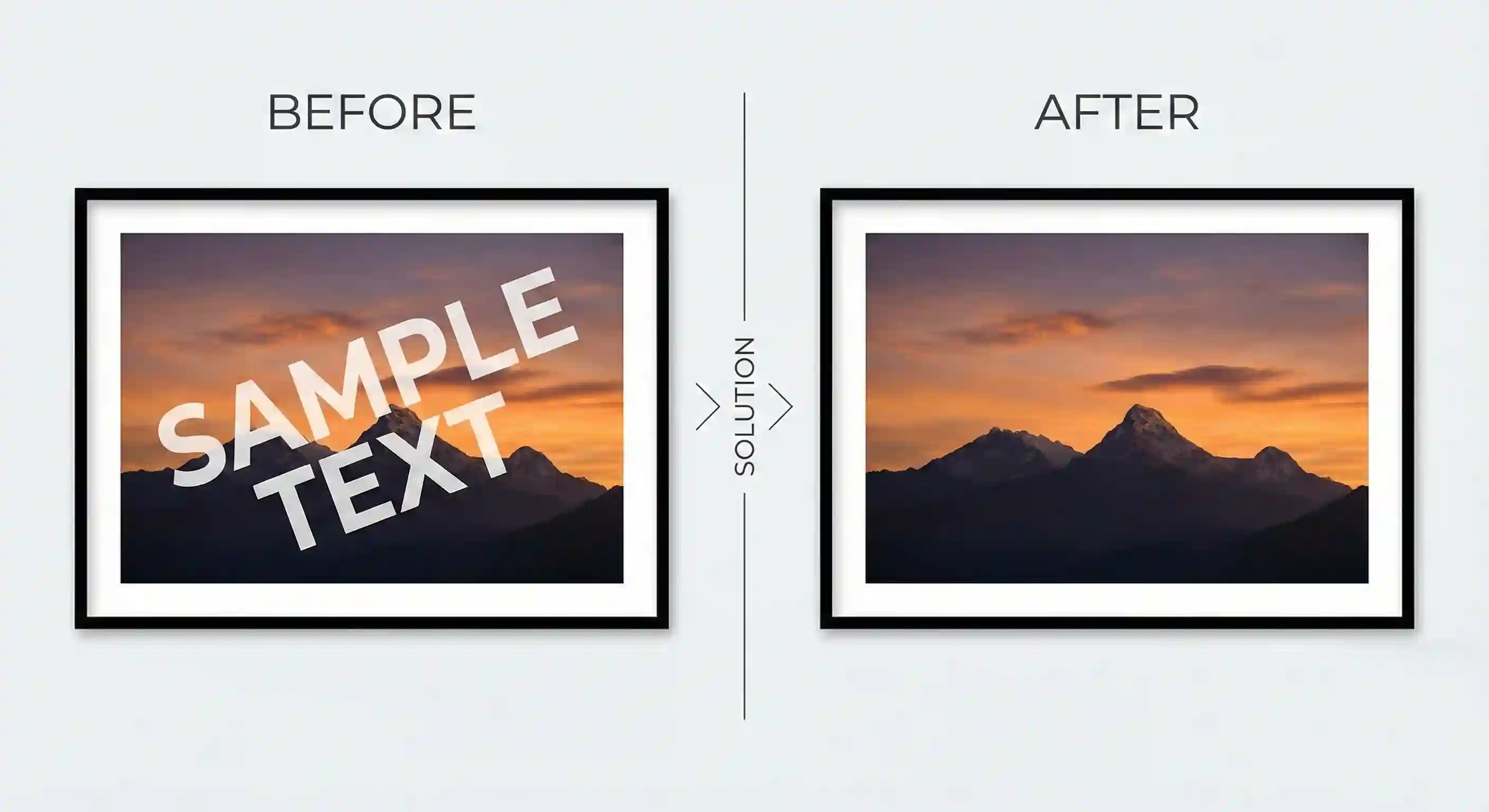
Ever found the perfect image, only to have it ruined by unwanted text or a watermark? The real challenge is learning how to effectively remove text from image Photoshop You must do this without leaving behind a blurry, tell-tale smudge. Too often, simple erasing tools destroy the background, turning a quick fix into a bigger mess.
You're not only!This post features a request for help with removing text from a book cover in Photoshop to create a phone wallpaper.
Remove the text from the image?
This is where our definitive guide comes in. In this guide, we walk you through four professional methods. You will learn how to remove text from image Photoshop The key is to keep the background completely intact. We cover all methods, from the AI-powered Generative Fill to the precise Clone Stamp tool.
By the end of this article, you will have the skills and confidence to remove text from image Photoshop You can transform any cluttered photo into a clean, flawless visual.
1.The Magic of: One-Click Text Removal with Generative Fill
Welcome to the future of photo editing in Photoshop. If you seek the fastest and smartest way to remove text from image Photoshop, Generative Fill is your answer. This AI-powered feature is a complete game-changer, especially for images with complex backgrounds.
If you don't know how to use PS correctly, you will operate it very poorly. For instance, in this subreddit, there is a post discussing tips on how to avoid a "mud-like" look when removing advertising slogans and overlaying text in Photoshop.
Discussion on tips for keeping backgrounds natural while removing advertising text
But don't worry. Keep reading and you'll get it!
This powerful AI solution makes text removal much faster. A once tedious, ten-minute task now takes only a matter of seconds.

1.1 What Is Generative Fill and How Does It Work?
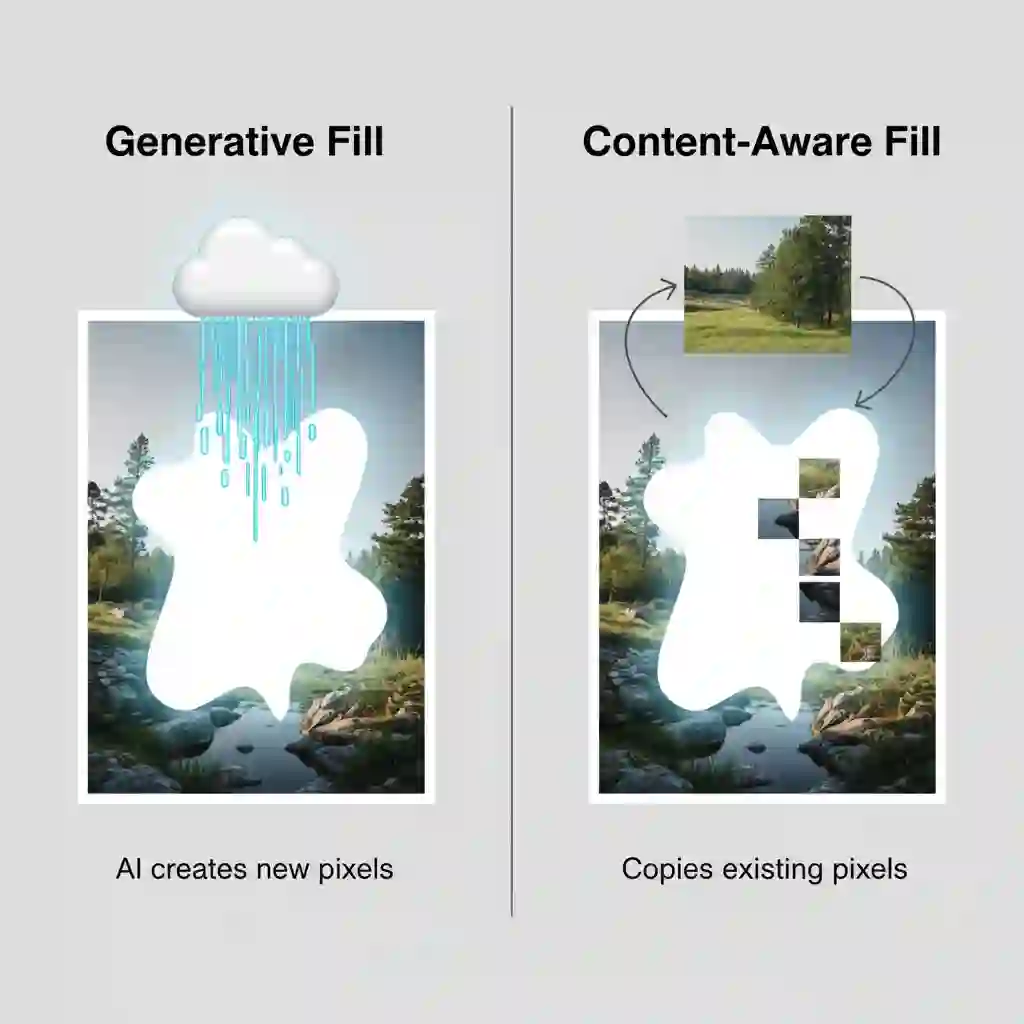
Generative Fill is powered by the Adobe Firefly AI. Its fundamental difference from older tools is how it works. It does not copy pixels from another part of the image. Instead, the AI understands the context around your selection. It then creates brand-new, natural pixels to fill the space.
It recognizes lighting, textures, and patterns. This means it can reconstruct complex surfaces like grass, clouds, or water with realistic results.
This video provides detailed examples of removing text from photos using Content-Aware Fill, demonstrating the process step by step.
1.2 Step-by-Step: AI Text Removal in 3 Steps
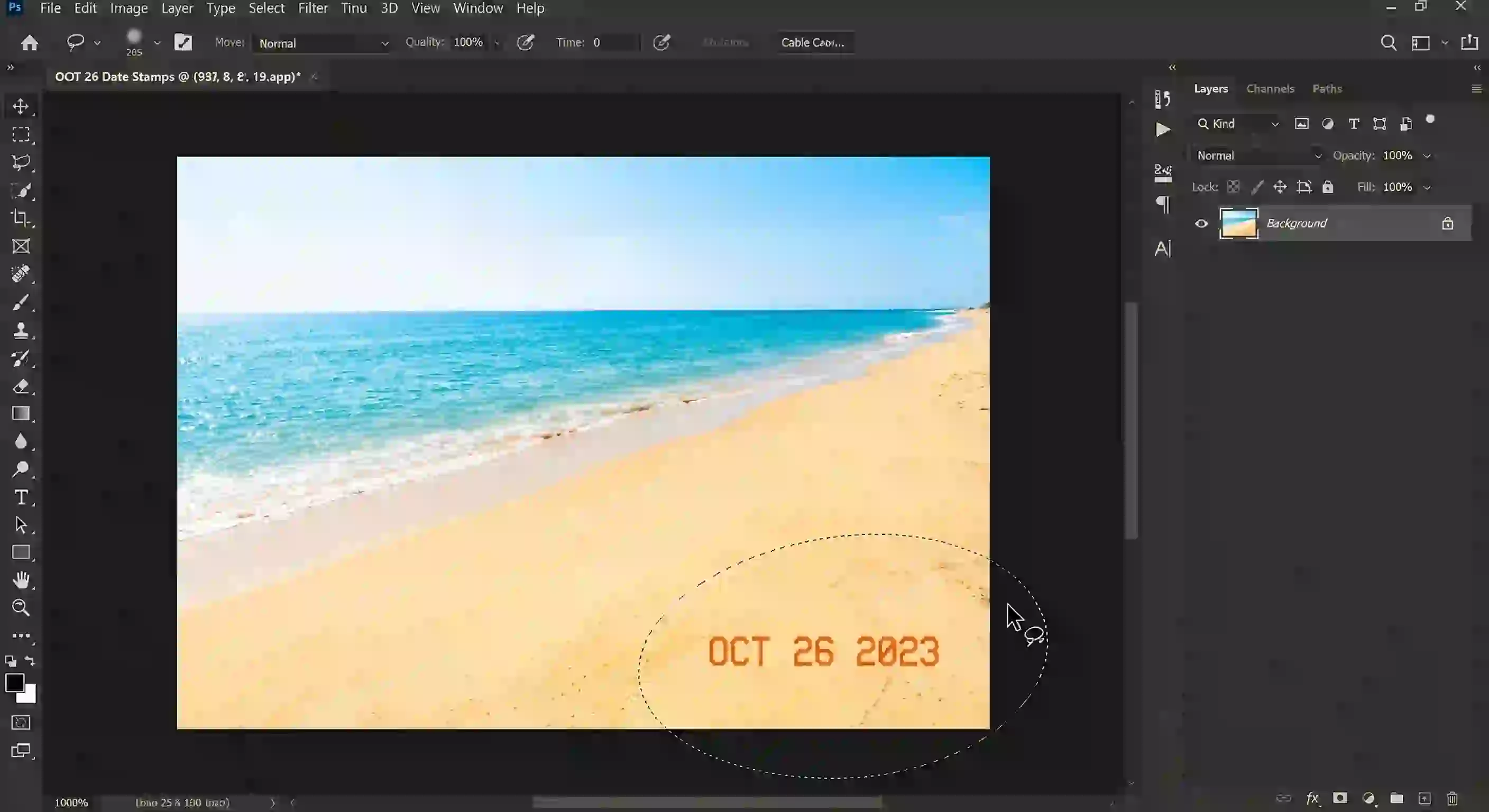
Removing text with Photoshop's Generative Fill is straightforward. Let's use an example of a beach photo with a date stamp.
First, use the Lasso Tool to roughly select the text you want to remove. You don’t need to be precise; make sure the text is inside your selection. This is the first step to remove text from image Photoshop
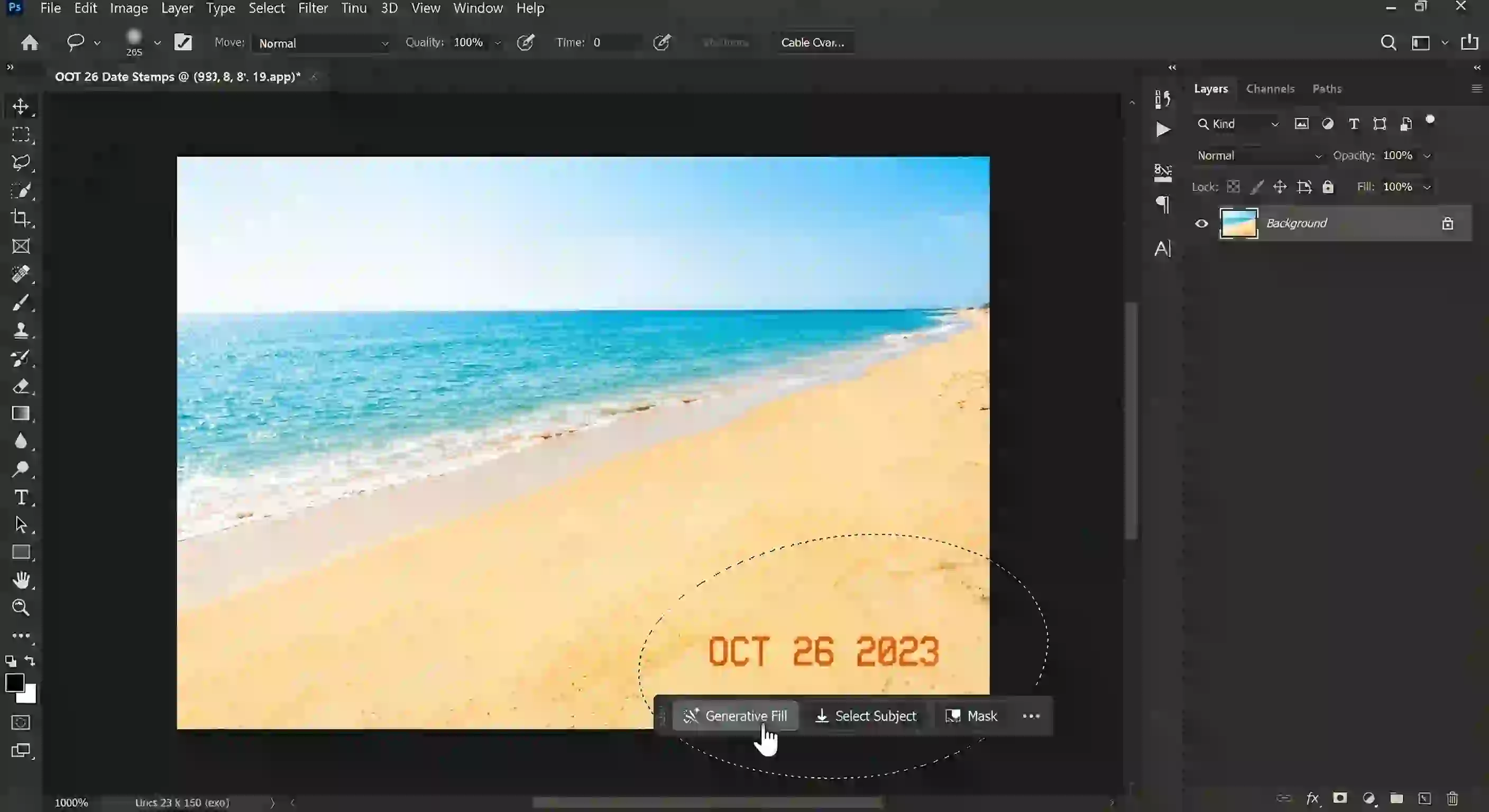
Second, once you make the selection, a Contextual Task Bar will appear. Click the ‘Generative Fill’ button on this bar.
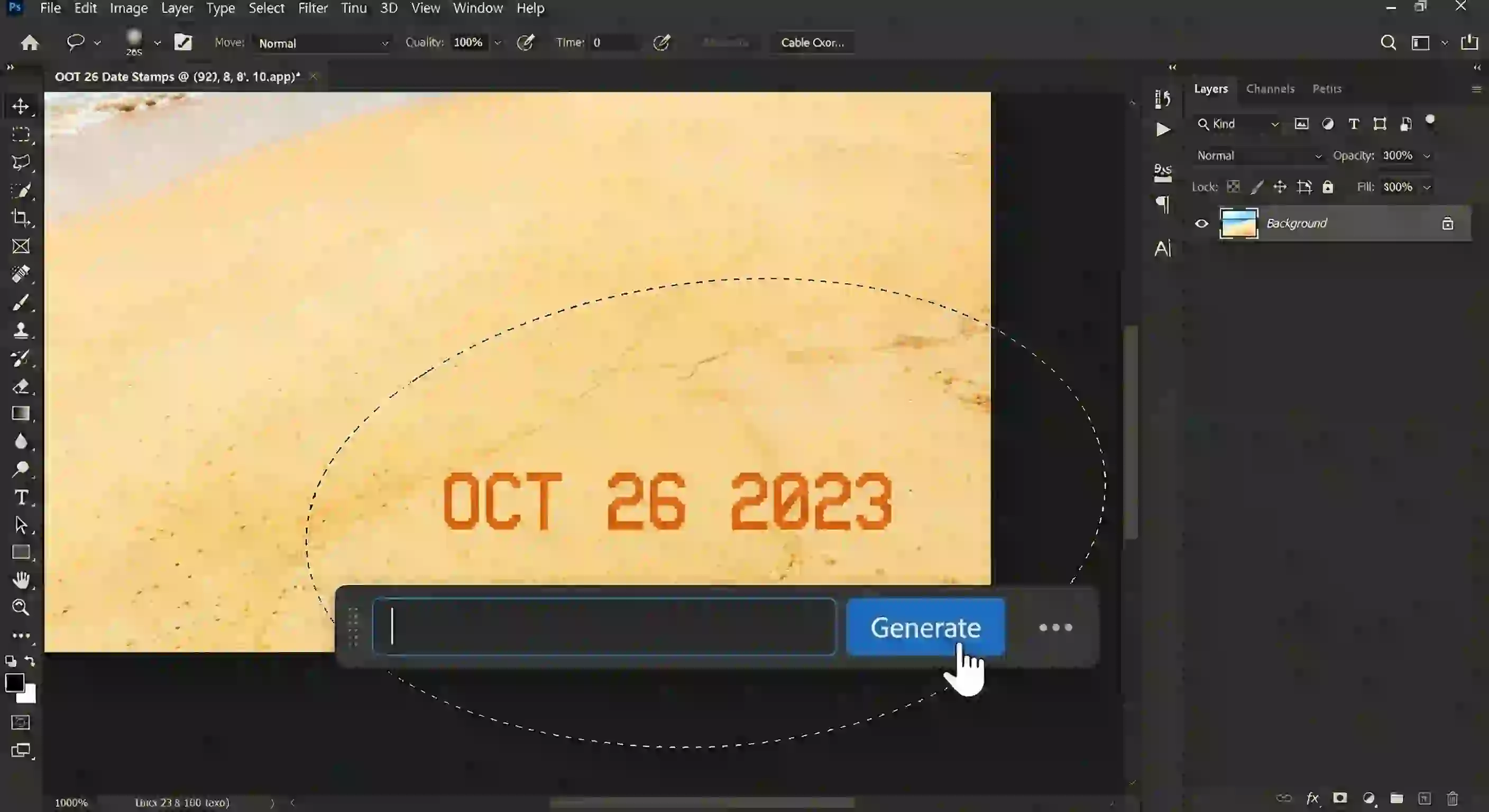
Third, in the prompt box that appears, leave it completely blank. Do not type anything. Click the "Generate" button and watch the magic happen. The AI will do all the heavy lifting to remove text from image Photoshop
1.3 Reviewing and Choosing the Best Variation
The AI is generous with its results. After processing, it provides three different fill variations in the Properties panel. You can click through each one to see which version blends best with the original background.
1.4 Pros, Cons, and Best Use Cases
While this technology is very powerful, it's important to know when to use it.
Pros: The tool is fast and produces amazing results. It is also very beginner-friendly. This makes it the best choice for complex, non-repeating backgrounds like skies, forests, and water.
Cons:It involves complex operations and you have to use it on the desktop. However, you are not often in front of your desk.So, if you plan to remove text from image Photoshop using this method, it’s hard to use.
If you're afraid I won't be clear enough, here's a video for your reference.
2.Classic & Efficient: Seamless Techniques with Content-Aware Fill
Before the arrival of AI Generative Fill, Content-Aware Fill was the standard tool to remove text from image Photoshop It remains a powerful tool today. Its key advantage is the greater manual control it offers. Mastering this classic technique is essential for any serious user.
This tool lets you specify the exact pixel source for the repair. This ensures you can remove text from image Photoshop without damaging the background.
2.1 Content-Aware Fill vs. Generative Fill: What’s the Difference?
There is one core difference between these two tools. Generative Fill uses AI to create new pixels within a selection. Content-Aware Fill operates differently. It samples pixels from other parts of your existing image to fill the selected area. You can think of it as a sophisticated copy-and-paste tool.
This distinction helps you decide when to use this classic method. When your goal is to use only the image's own pixels for the repair, Content-Aware Fill is the better choice.
2.2 The Professional Workflow: Using Content-Aware Fill
To use this tool like a pro, the key is controlling its sampling source. Let's use a case study: an image of a book with text on a wooden desk. Our goal is to fill the text area using only the surrounding wood texture.
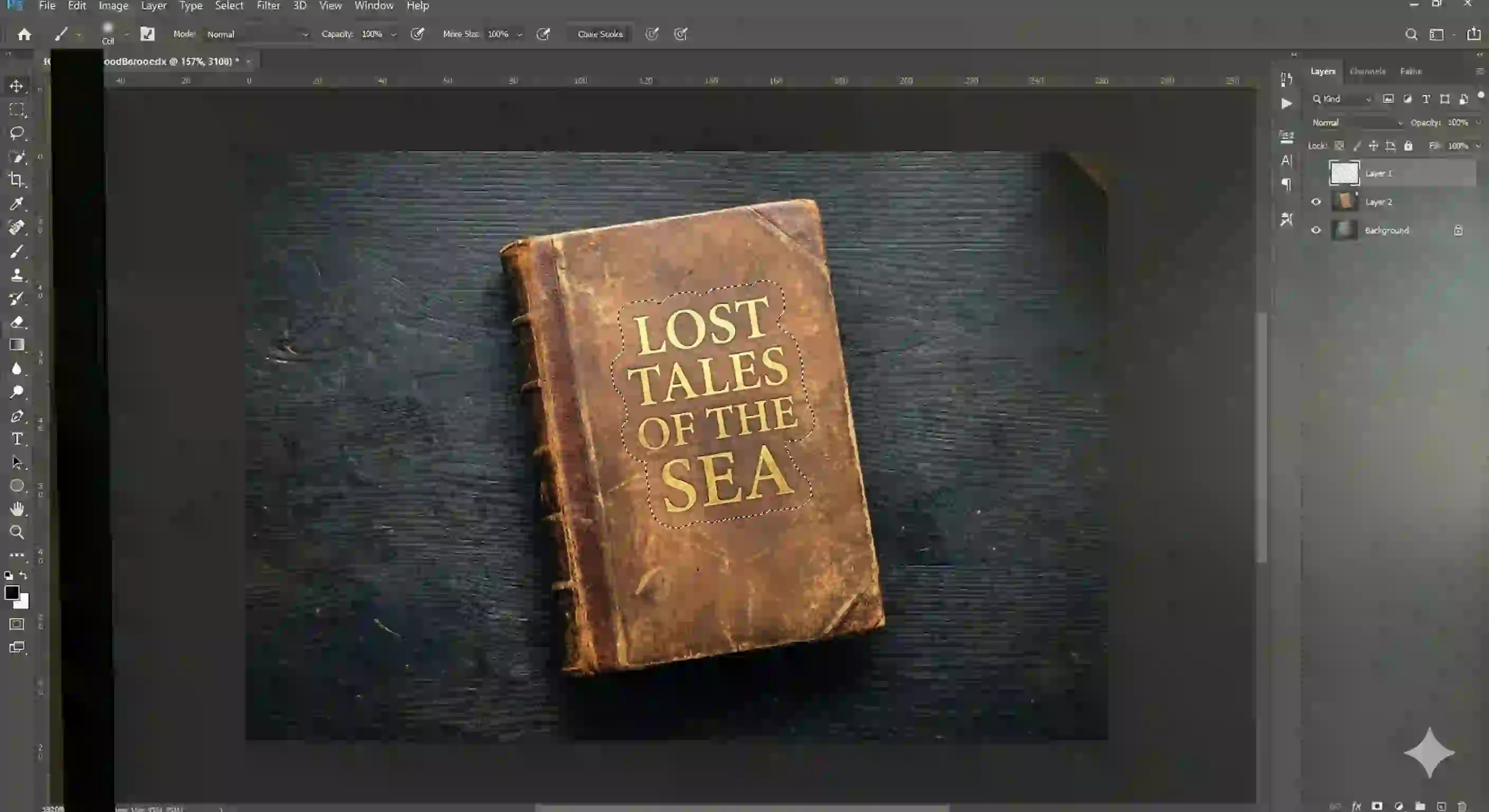
First, create your selection. Use the Lasso Tool to select the text, leaving a small margin, or "breathing room." This initial step in how to remove text from image Photoshop provides a good foundation for the fill.
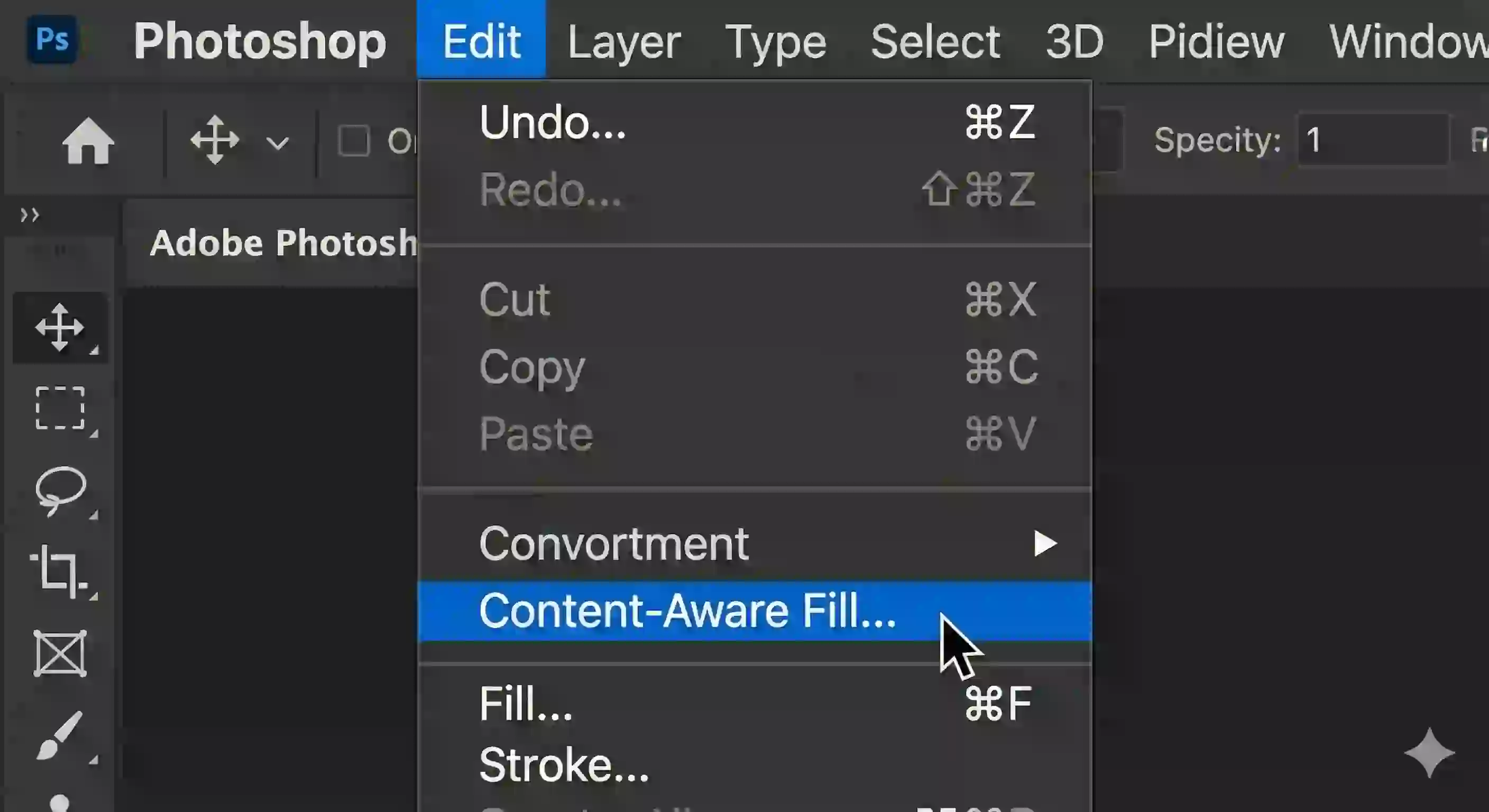
Second, open the workspace. Navigate to the top menu and choose "Edit" > "Content-Aware Fill." This opens a dedicated interface with your image on the left and a live preview of the result on the right. This is a central step to remove text from image Photoshop
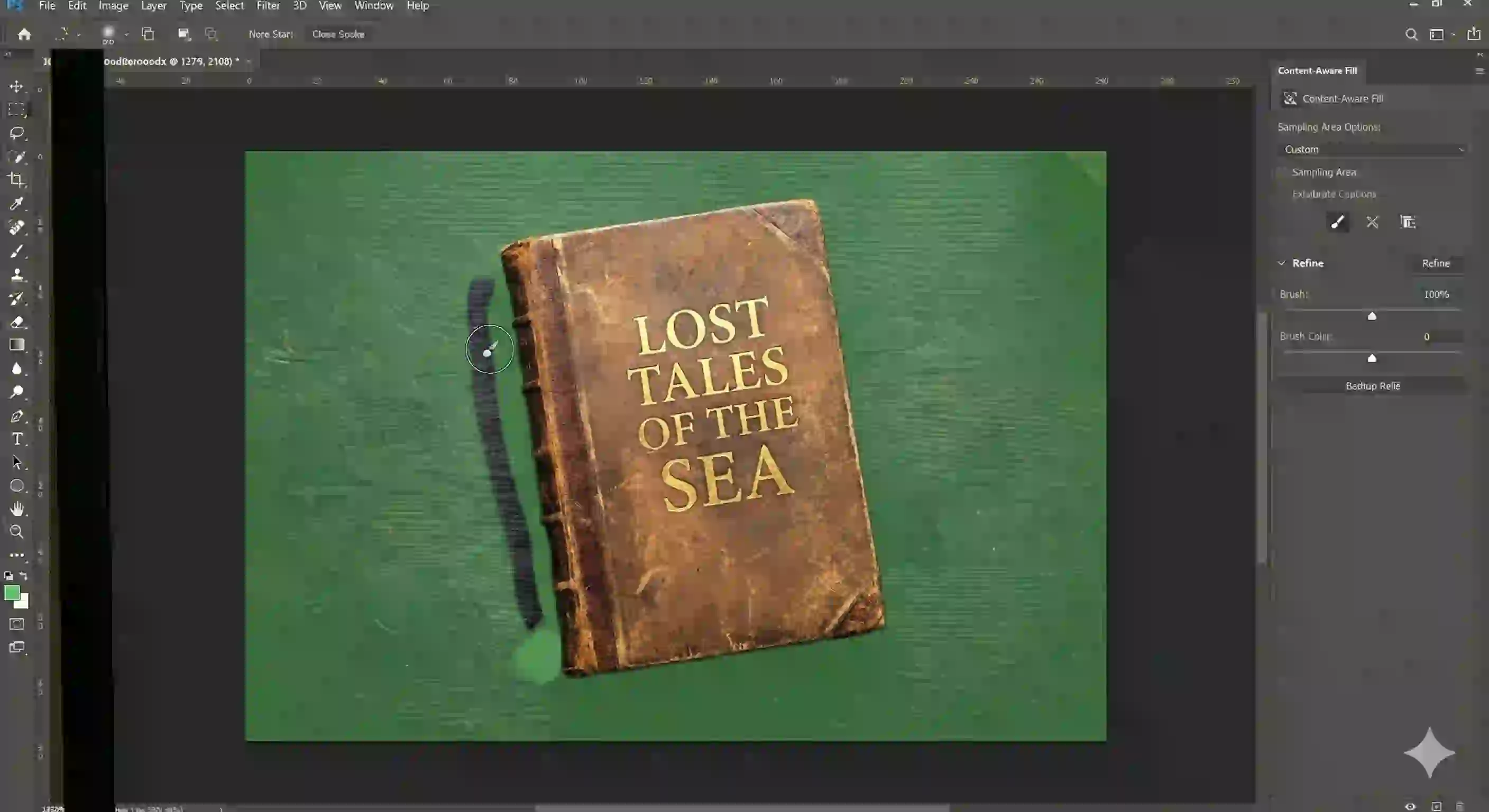
Third, and most critically, refine the sampling area. On the left window, you'll see a green overlay on your image. This indicates where Photoshop is sampling pixels from. In our example, it might incorrectly include the edge of the book. Use the subtract brush at the top to paint over the book, removing it from the green area. Now, Photoshop will only sample from the clean wood texture, allowing a perfect removal of text from the image.
2.3 Output Settings and Final Adjustments
In the settings panel on the right, select "Output Settings," then choose "Output to New Layer." This is a vital professional habit. It places the filled result on a separate, independent layer. This leaves your original image completely untouched. This non-destructive workflow is key to efficiently remove text from image Photoshop
The fill may occasionally leave minor imperfections. If so, create a new blank layer and use the Clone Stamp tool for final, detailed touch-ups. With this method, you can confidently tackle complex jobs.
You will know exactly how to remove text from image Photoshop and achieve a flawless result. You can successfully complete your goal to remove text from image Photoshop
3.The Art of Pixel-Level Repair: Clone Stamp & Healing Brush
When AI and automated tools hit their limits, true mastery begins. Some complex scenarios demand you work like a digital restorer, performing precise, pixel-level edits. This chapter will guide you through the two most powerful manual tools. It will empower you to complete any advanced task to remove text from image Photoshop
Mastering these tools gives you ultimate control. You can tackle challenges automation can’t handle. This allows you to perform the most professional remove text from image Photoshop
3.1 When to Ditch Automated Tools for Manual Repair
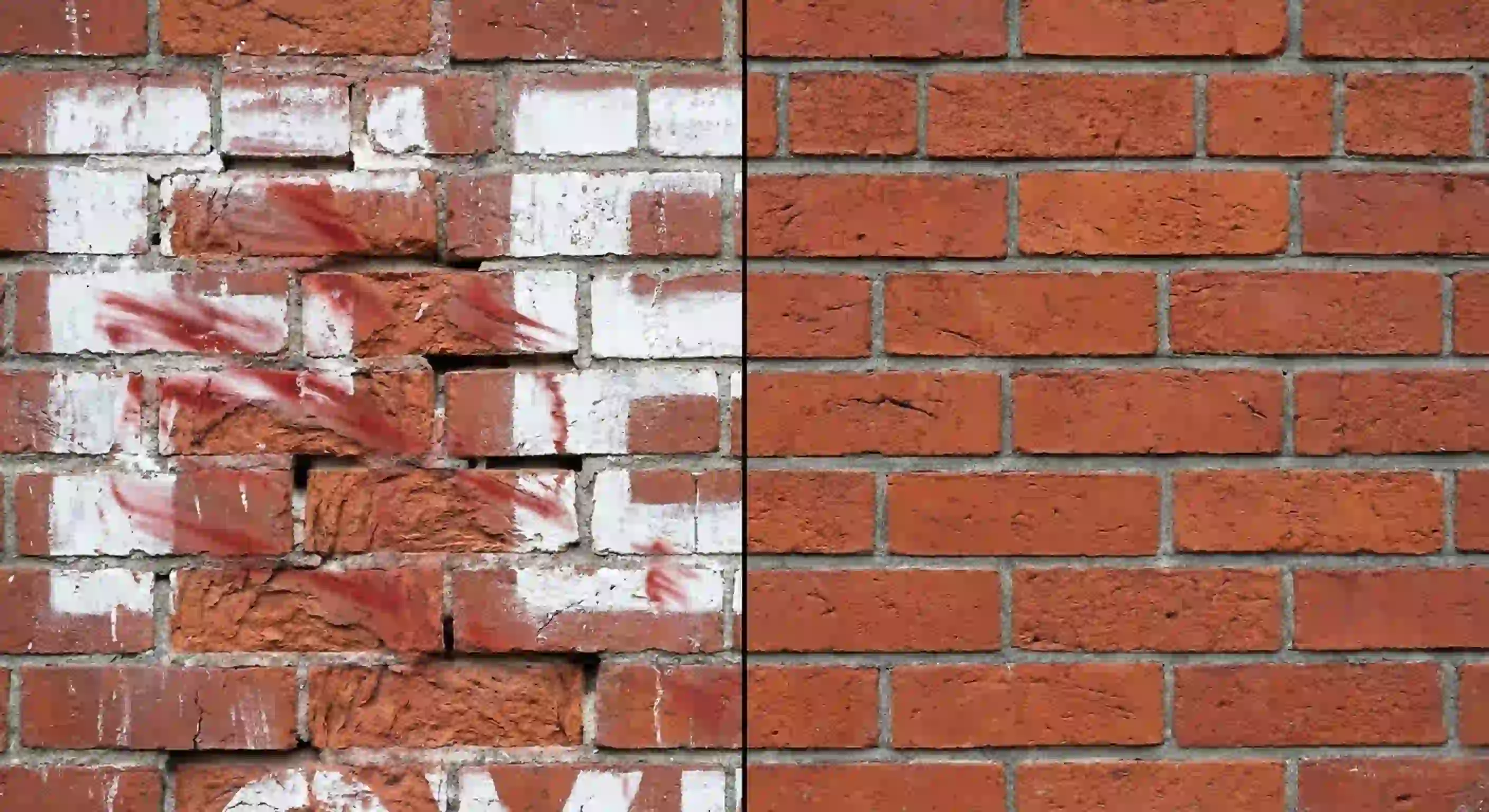
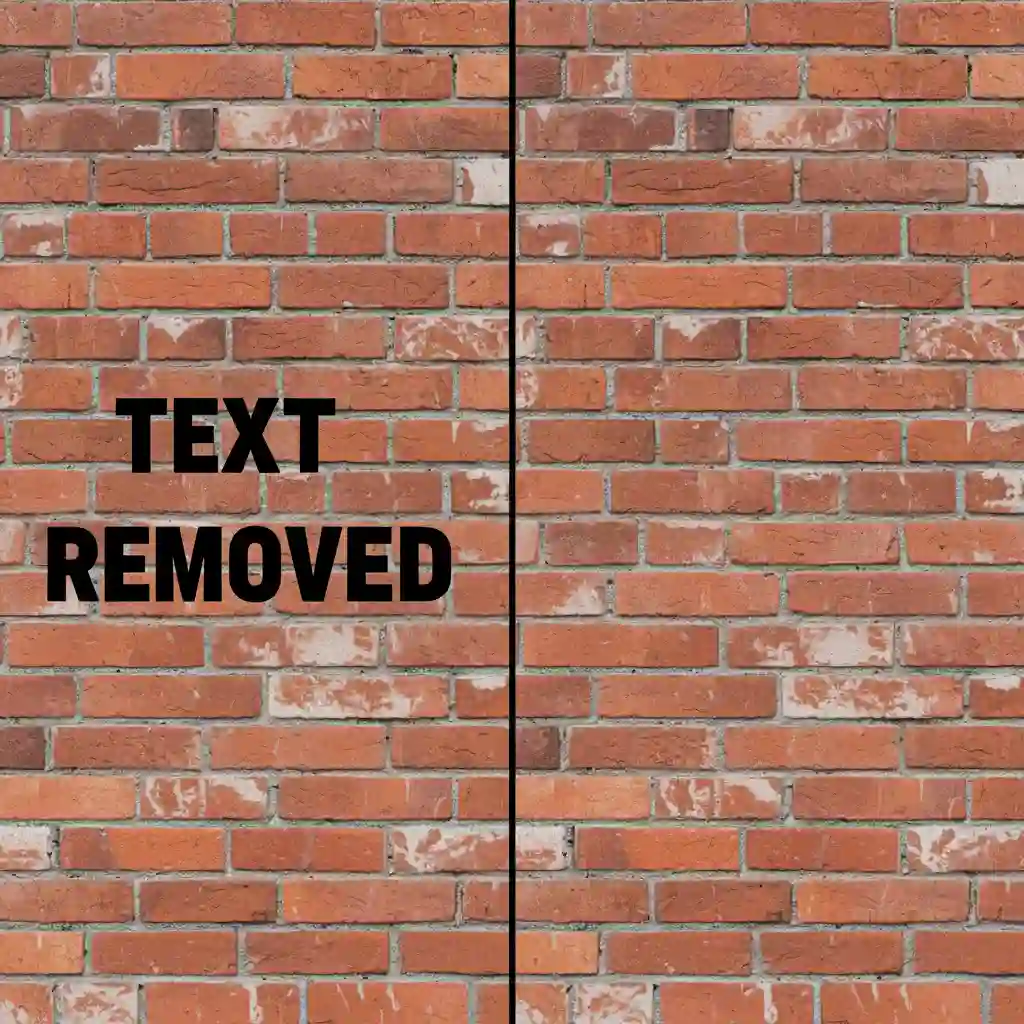
Automated tools are not infallible. They often get confused when text is set against a background with a clean, repeating pattern. Imagine text on a striped shirt, a brick wall, or a detailed wood floor. In these cases, automatic fills will likely break the pattern. This leaves a blurry, unnatural mess.
This is where manual repair becomes essential. For these scenarios, meticulous handiwork is the only way to remove text from image Photoshop perfectly. You must reconstruct the underlying texture. It is this attention to detail that separates a professional result from an amateur one.
3.2 Core Techniques of the Clone Stamp Tool
The Clone Stamp tool is your Swiss Army knife for any pixel-level operation to remove text from image Photoshop Its principle is simple. It copies pixels from one area (the source) and paints them onto another area (the target).
Let's use a case study: removing a logo from a plaid shirt. First, create a new blank layer for non-destructive editing. Second, select the Clone Stamp tool. Hold down the Alt (Windows) or Option (Mac) key, and click on a clean area of the plaid pattern next to the text. This sets your source point.
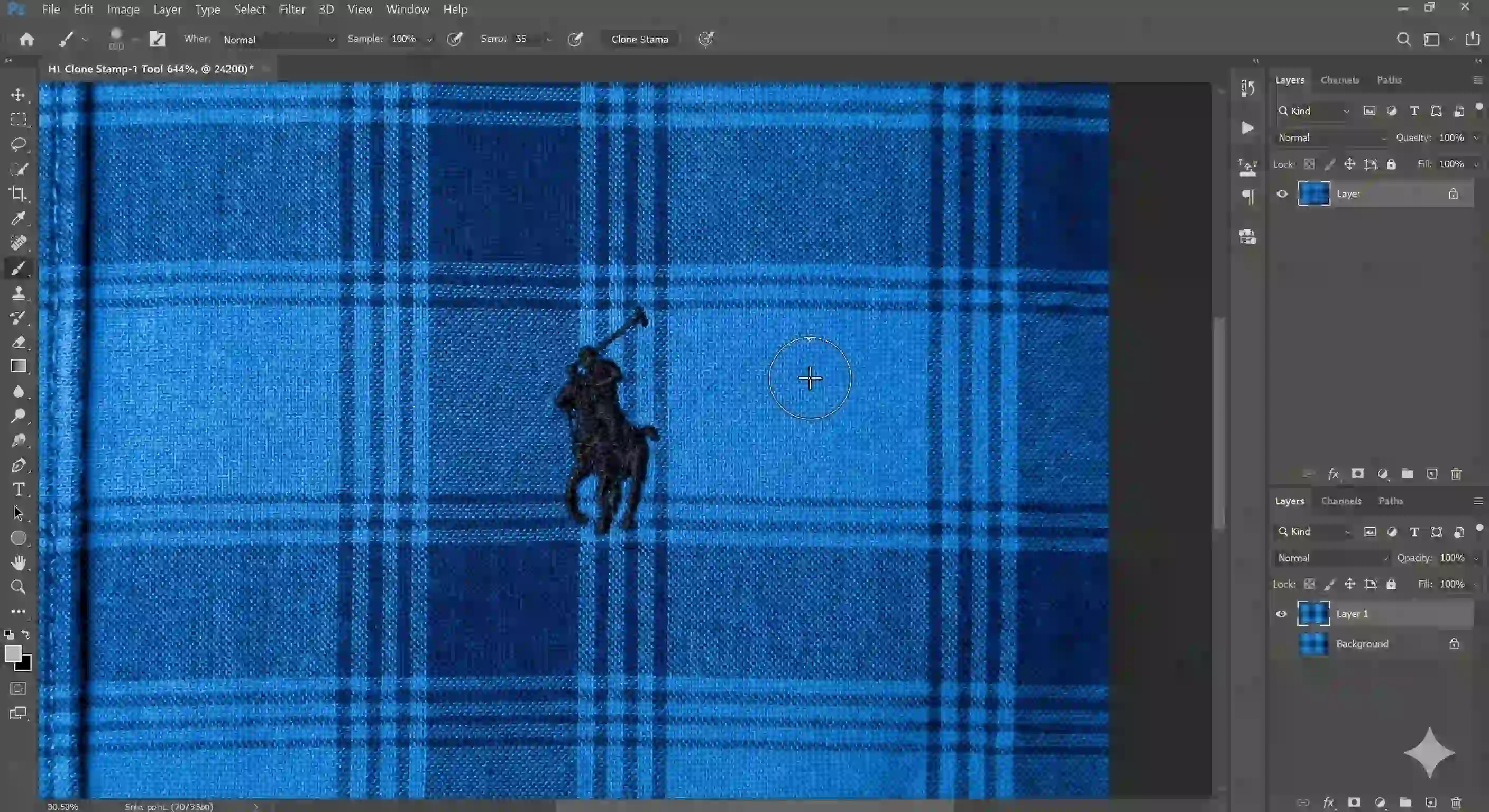
Third, release the key and begin painting over the text. You will see the source pattern copied perfectly over the area. To make this look seamless, you'll need a few pro tips. Use a soft-edged brush (0-20% hardness) and consider lowering the opacity (e.g., 50-80%) to build up the effect. Most importantly, change your source point frequently.
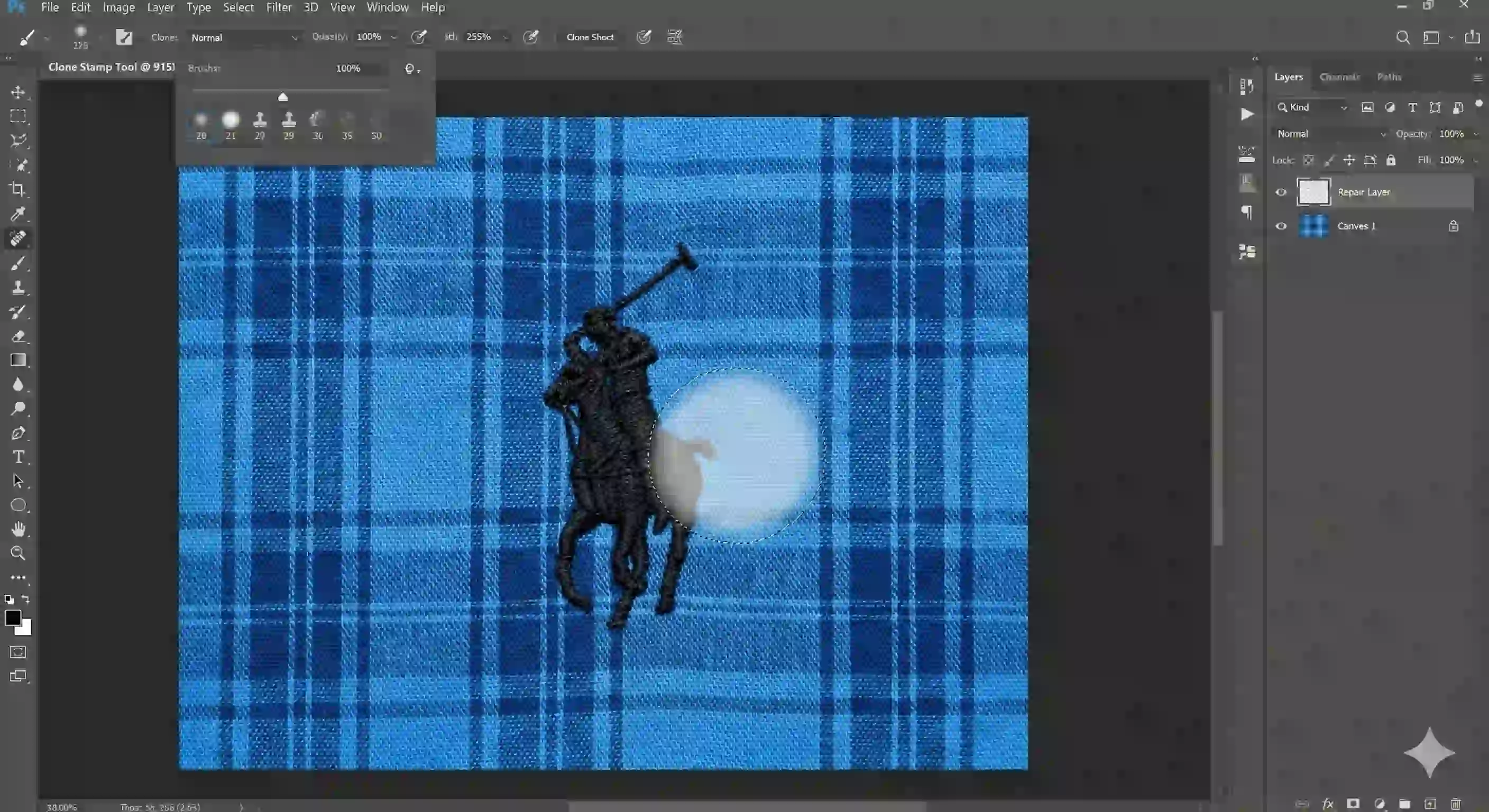
Taking new samples from different clean areas around the text prevents a repetitive, artificial “stamped” look. This is the secret to achieving high-quality results when removing text from an image in Photoshop.
For text on complex images, we recommend using the Rectangular Marquee Tool and Contextual Taskbar for instant text removal. A demo is available here.
3.3 Smart Blending with the Healing Brush Tool
The Healing Brush is the "smarter cousin" of the Clone Stamp. Both tools operate similarly, requiring you to set a source point. However, their results are fundamentally different. The Clone Stamp performs a direct 100% pixel copy. The Healing Brush, by contrast, blends elements. It combines the texture, lighting, and shading from the source point with the color and tone of the target area.
This makes it the perfect tool for final touch-ups. After you remove text from image Photoshop with the Clone Stamp, you may notice harsh edges where cloned areas meet. To fix this, switch to the Healing Brush. Painting over these seams will smooth everything out for a seamless finish.
It ensures your final remove text from image Photoshop is completely undetectable. Using these two tools together is the standard workflow for any professional retoucher. It is essential for tackling a complex task to remove text from image Photoshop Ultimately, you will be able to remove text from image Photoshop with confidence. No matter how intricate the background, your text removal results will be flawless.
4.Scene-Based Decisions: Choosing the Best Removal Method
You have learned the powerful tools, but real wisdom lies in choosing the right one for the right job. The wrong choice can waste your time or even ruin your image. This chapter provides a clear framework for decision-making. It will help you quickly determine the best way to remove text from image Photoshop every time.
This process ensures you have a solid plan before you start editing. It enables a professional workflow when you remove text from an image in Photoshop.
4.1 Your Decision-Making Flow
Before you start to remove text from image Photoshop, take ten seconds to ask yourself a few questions. This will guide you straight to the most effective path.
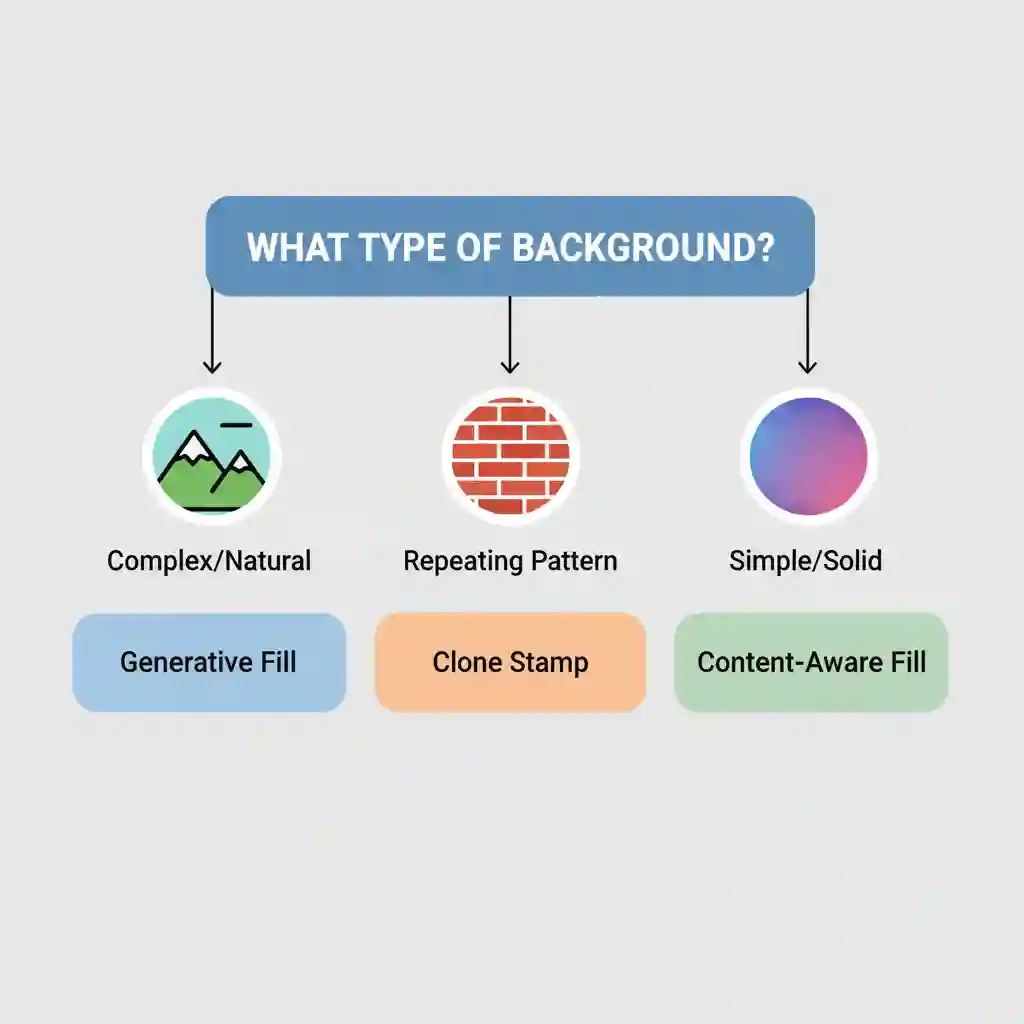
First, ask: Is the background complex and non-repeating? Think of skies, forests, or water. If yes, your first choice should always be Generative Fill. Its AI is best equipped to understand and recreate these complex, natural textures. This makes it the most efficient method to remove text from image Photoshop
If the background is not complex, ask a second question: Does it have a clean, repeating pattern? This includes brick walls, striped fabrics, or floorboards. If yes, the Clone Stamp tool is your champion. It is the only tool that gives you the precision to align these patterns perfectly. This ensures a flawless result when you remove text from image Photoshop
If the background is simple, without complexity or a repeating pattern (like a solid color or a simple gradient), then Content-Aware Fill or the Spot Healing Brush will be your fastest and easiest solution.
4.2 Strategy Chart for Different Backgrounds
Now that you are familiar with these powerful tools, you might have a key question: when should you use each one?
The answer lies in the image's background. Different background types demand different tools. A tool that works perfectly on a complex sky might struggle with the regular pattern of a brick wall. To help you make decisions like a pro, we've created the clear strategy chart below. Use it as a quick reference guide to find the best solution based on your image's background.
| Background Type | Recommended First Choice | Secondary / Fine-Tuning Tool |
|---|---|---|
| Complex, Irregular (e.g., Sky, Forest, Crowds) | Generative Fill | Content-Aware Fill |
| Simple, Solid Color / Gradient | Spot Healing Brush / Content-Aware Fill | - |
| Regular, Repeating Pattern (e.g., Bricks, Fabric) | Clone Stamp Tool | Healing Brush Tool |
| Text Near a Sharp Object Edge | Clone Stamp / Content-Aware Fill + Layer Mask | - |
If you have any other questions, these cases discussed on reddit might be suitable for you:
A discussion on restoration workflows for removing date stamps and descriptive text from old photos.
Step-by-step guide to removing date stamps and text from old photos in Photoshop
A thread exploring the best solutions for high-quality text removal from images using AI or image editing tools.
What are the best methods to remove text from images?
Instagram also hosts numerous tutorials, such as this Reels demo on removing text from images in Photoshop, which showcases both correct and incorrect practices.
Even for more challenging and complex images, you can find solutions here. For example, this video demonstrates professional-grade text removal operations in Photoshop.
5.Can You Do This on a Phone? A Smarter Photoshop Alternative
Of course, not every task to remove text from image Photoshop requires a desktop computer. A good app for removing text from an image can be very convenient for quick fixes on the go. Apps such as Snapseed and YouCam Perfect have ‘healing’ tools that work well on simple backgrounds.
Their strength is convenience. But their weaknesses are also clear. On complex backgrounds, their simplified algorithms often leave blurry or repetitive artifacts. Also, painting on a small screen is tedious and lacks the precision you get when you remove text from image Photoshop on a desktop.

5.1 Introducing Remove Text From Image(Our Tool): The Next-Generation Text Remover
Our tool offers the convenience of a mobile app. It also delivers the professional quality of a remove text from image Photoshop edit. We built it for you and have reimagined the traditional editing workflow.
Forget the complex tools in Photoshop and the frustrating finger-painting on mobile apps. On our platform, you only do one thing: upload your photo. Our powerful AI scans the image, identifies all text, and then removes it. It fills the area with a perfectly blended background.
The entire process is automated. You do not need to select anything or struggle to write a prompt. It is like having a professional retoucher remove text from image Photoshop for you. We trained our AI on thousands of hours of image data. This ensures stunning results, even on complicated backgrounds.
This is a revolutionary solution for users who want professional quality without the learning curve. It makes high-quality text removal from Photoshop images more accessible than ever. We invite you to try it for free now. Experience its convenience for yourself and see how it outperforms traditional Photoshop methods.
5.2 Supplementary Features and Related Resources of the Tool
Our tool eliminates the need for manual operation of various tools like in Photoshop, enabling fully automatic text removal from images. Simply upload your image, and it will automatically recognize and process the text. (Remove unwanted text, watermarks, captions, or logos from images automatically using AI)
In this blog, we have compared multiple tools for removing text from images. Check it out if you're interested. (Compare 5 apps that remove text from image)
Beyond text removal, we also offer an AI-powered automatic image brightening feature to enhance dark or underexposed photos. (Brighten dark or underexposed photos with an AI-powered image brightener)
Additionally, there's a function to automatically remove people from images using AI. (Remove people or distracting subjects from photos using AI)
6.You Have Mastered Core Photoshop Text Removal Techniques
Congratulations! You are now equipped with a complete set of professional skills. You can handle any challenge to remove text from image Photoshop with confidence. We have explored four powerful methods, each designed for a different scenario.
You have learned to use Generative Fill's AI for complex, one-click removals from images. You also mastered the classic Content-Aware Fill workflow for more controlled repairs. For the toughest jobs, you can perform pixel-perfect edits using the Clone Stamp and Healing Brush. This will help you achieve a professional result.
Crucially, you now know how to choose the right tool based on the image's background. This elevates your efficiency and results as you remove text from image Photoshop
The choice is now yours. You can open Photoshop and start practicing these new skills today. Or, if you want a faster, smarter, and completely automated solution, click the button below. Try our app for removing text from images for free. See for yourself how well AI can remove text from image Photoshop with just an upload—no manual work required.